
Confluence setup guide
Make it yours
Most churches are live in a day. Work through the six steps in order; everything below them is reference for later. About 3 hours in total.
Step 1
Logo, colors and fonts
About 20 minutes
Every color and text on the site comes from a small set of styles. Change a style once and every page follows.
Assets
›
Styles
›
Color
1
Open Assets at the top of the left panel, then Styles › Color.
2
Click Ink and pick your main color. Text, buttons and dark sections follow.
3
Page, Card and Paper are the light backgrounds. Keep them light so text stays readable.
4
Open Styles › Text to change fonts. Big Shoulders sets every headline, label and button, Archivo the running text.
5
Replace the logo in the Header component and in the footer (Assets › Templates › Main Layout).
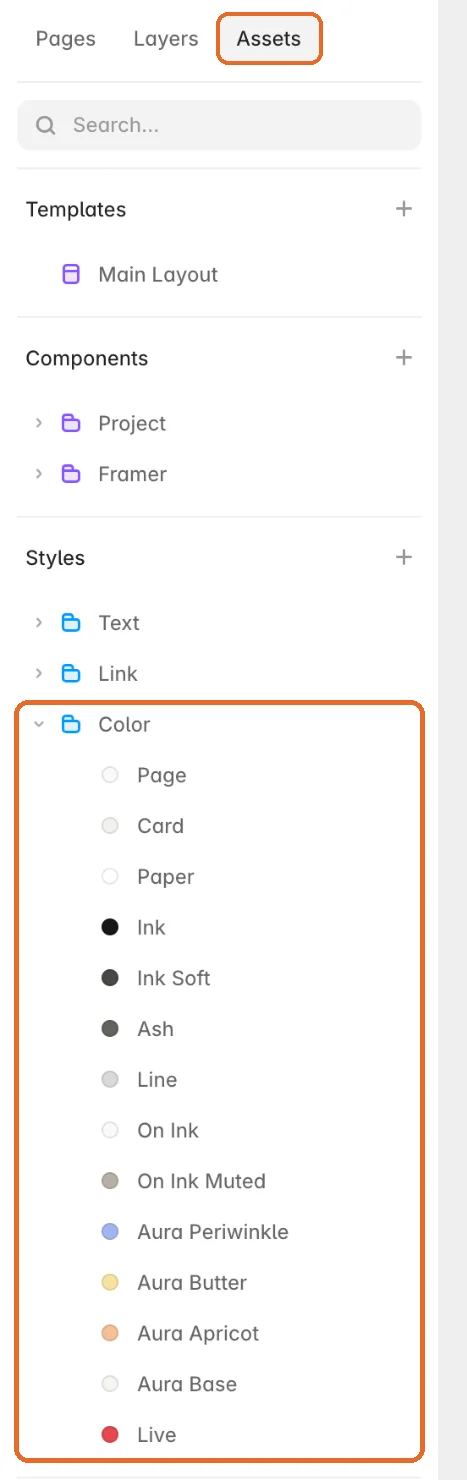
All colors of the template.
Ink
#17151A · Text, buttons, dark sections
Card
#F1F1EF · Cards and quiet panels
Page
#FAFAF9 · Page background
Aura Periwinkle
#A3B4F2 · Color moment, calendar highlights
Aura Butter
#F7E3A0 · Color moment, calendar highlights
Aura Apricot
#F4BF96 · Color moment, calendar highlights
AA
Big Shoulders
Headlines, labels, buttons
Aa
Archivo
Running text

Tip: the soft color glow behind the call-to-action bands is an image inside the Aura CTA component. Replace it there to change the mood. The Styleguide page shows every color and text style in one place.
Step 2
Church details and locations
About 30 minutes
Replace the demo church in these places. Your locations live in the CMS, so their pages, the footer times and the location filters update together.
Name, service times, address, phone, pastor and photo for each campus. Add or remove campuses here; the Locations page and each location page follow.
Email, phone, newsletter text and social links. Find it in Assets › Templates › Main Layout.
Office hours, phone, email and the Google Map location.
These are examples. Replace them with your own legal text.
Site title, description, language, favicon and social image. Open Settings from the menu at the top left.
Block CONFLUENCE-SCHEMA: church name, website, locations and contact data. Search engines read these values.

Settings › General: title, description and language of the site.
Step 3
Content in the CMS
About 60 minutes
Everything that changes week to week lives in the CMS, Framer’s built-in content manager. Add an entry once and it shows up on every page that lists it.
Menu top left
›
CMS
›
Collection
1
Switch from Canvas to CMS in the menu at the top left.
2
Pick a collection on the left.
3
Click + to add an entry, fill in the fields and leave the status on Live.

The CMS view with all eight collections.
Video, notes, scripture and speaker. The newest sermon leads the Sermons page; the series filter uses the Series field.
Artwork, season and a group guide PDF for each sermon series.
One-off and weekly events. See step 4.
Kids, students, care and more, each with its own page.
Your campuses. See step 2.
Articles with their own pages, newest first.
Short stories with a quote, photo and optional video.
Pastors and staff on the About page.
Tip: Sermons and News load six and three entries at a time and show a Load more button. Keep the list names ending in “List” so the button keeps its style.
Step 4
Events and calendar
About 30 minutes
The Events page has a month view, a list view and a Subscribe button for Google, Apple and Outlook. By default everything comes from your Events collection. You can also connect a public Google Calendar.
The day of the event. For retreats or Christmas services set End Date, and the event shows on every day in between.
Switch Weekly on and enter the Day (Sun to Sat). It repeats from its Date on, until End Date if set. Weekly events are grouped under Every week.
Decide which location chips show the event, for example north-shore students.
Shows the event in the carousel on the home page.
Past events hide themselves the day after they end. If fewer than three upcoming events are left, the latest past ones stay so no list is ever empty. Leave the hidden Calendar Feed layer inside the month view in place; it feeds your events to the calendar.
Use Google Calendar instead
1
In Google Calendar, open Settings and sharing of your calendar, tick Make available to public and copy the Calendar ID.
2
In Google Cloud, enable the Google Calendar API, create an API key and restrict it to your website domain.
3
In Framer, select the Event Calendar on the Events page and click the blue Google Calendar ID field. Events page variables opens.
4
Paste your Calendar ID into Default. Do the same for Google API Key, then publish.

Select Event Calendar. The marked fields are linked to page variables.
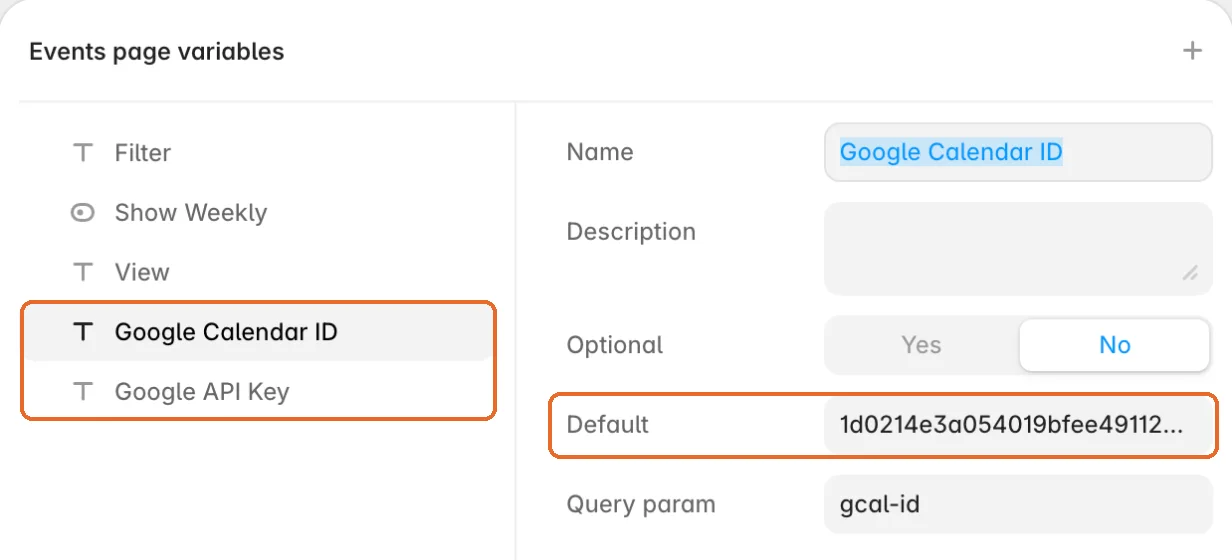
Events page variables: put your values in Default.
With an API key the month and list view show your Google events and the CMS list hides itself. Remove the key to go back to the CMS. The Subscribe button offers a live subscription when the Calendar ID is set, otherwise a calendar file with your CMS events.
Step 5
Forms
About 10 minutes
Confluence has seven forms. Tell each one where to send submissions.
Contact
Plan a visit
Event sign-up
Newsletter on Home, Events, News and articles
1
Click a form on the canvas, for example Contact Form on the Contact page.
2
In the right panel under Form, open Send to and enter your email address, or pick an integration.
3
Change the confirmation text in the Success Text of the form’s Submit Button.
4
Publish and send yourself a test message.
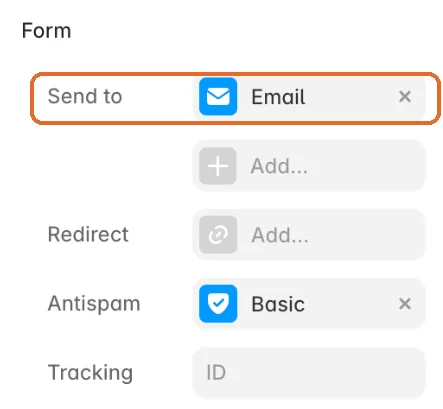
Form settings in the right panel.
Keep the Submit Button variant names that end in Success. The style block CONFLUENCE-FORM-SUCCESS uses them to hide the fields after sending.
Step 6
Domain and publish
About 15 minutes
1
Click Publish at the top right. Your site goes live on a free framer.website address.
2
For your own domain, open Settings › Domains and follow the steps. Framer shows the DNS records to enter at your domain provider.
3
Open the site on your phone and click through every page once.

Publish, then Update whenever you change something.
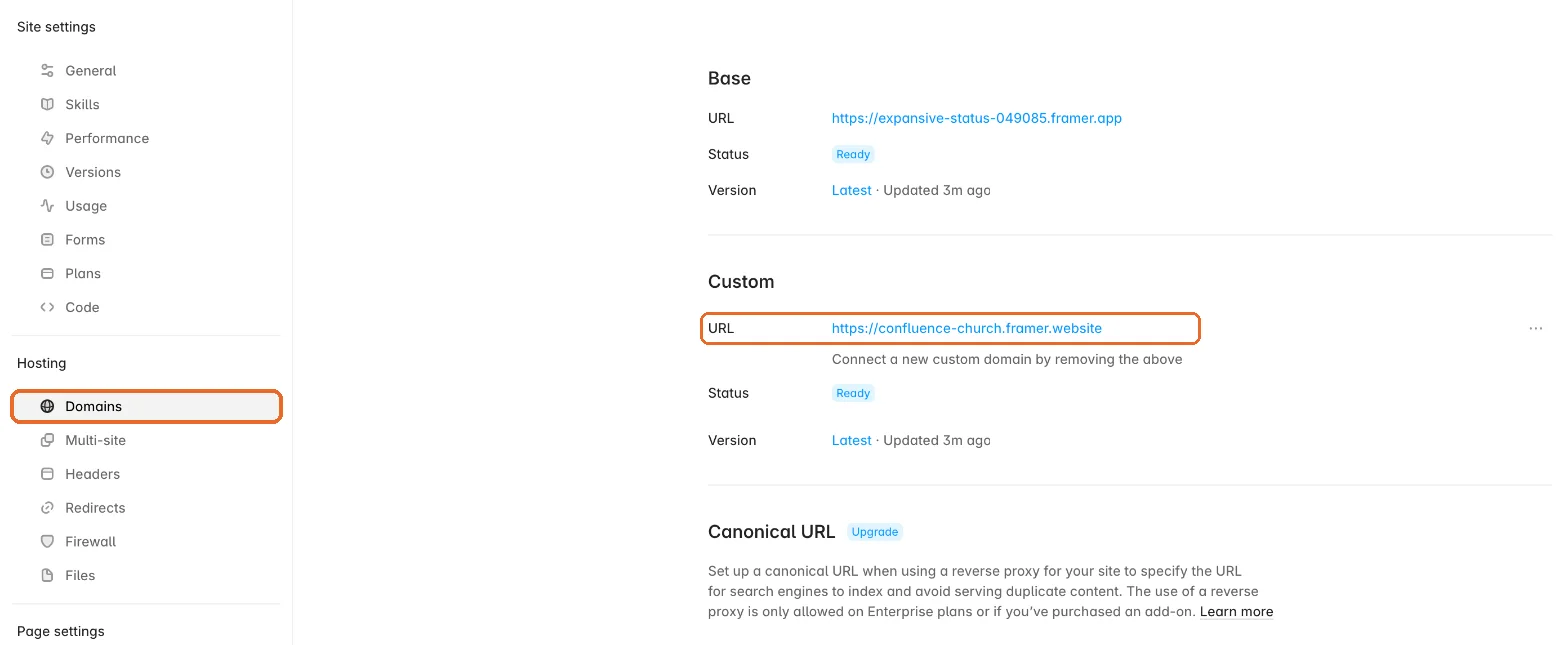
Settings › Domains. Connect your own domain here.
Tip: eight CMS collections need the Framer Pro site plan, which also includes a custom domain. DNS changes can take a few hours to arrive.
Reference
New here card
The small “New to Confluence?” card slides in after three seconds. Edit its text and link in the Float Card component, or delete the instance in the Main Layout if you do not want it.
Sermons, video and podcasts
Each sermon has a Video Link and a Podcast Link field. Watch and Listen buttons on the Sermons page and the live section link to the platform home pages; replace them with your channel.
Aura sections
The colored call-to-action bands are the Aura CTA component. Change label, title, text and up to three buttons in its properties on each page.
Custom code
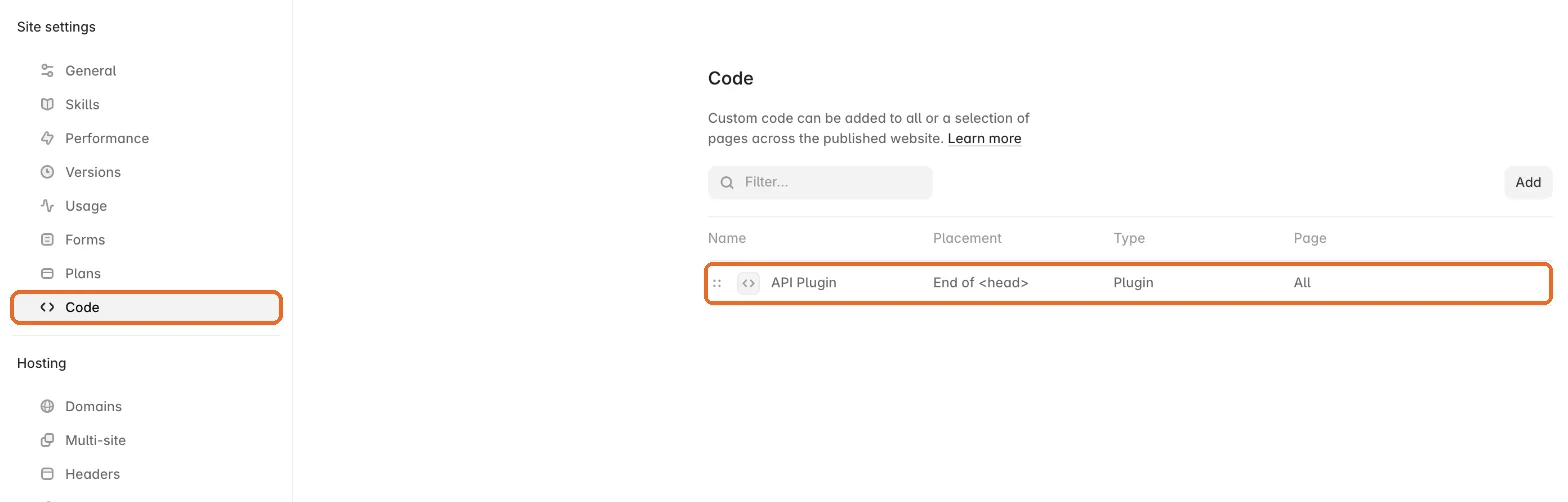
Settings › Code lists an entry called API Plugin at the end of <head>. Click it to open: each block starts with a comment that names it. Keep them unless you know you do not need them.
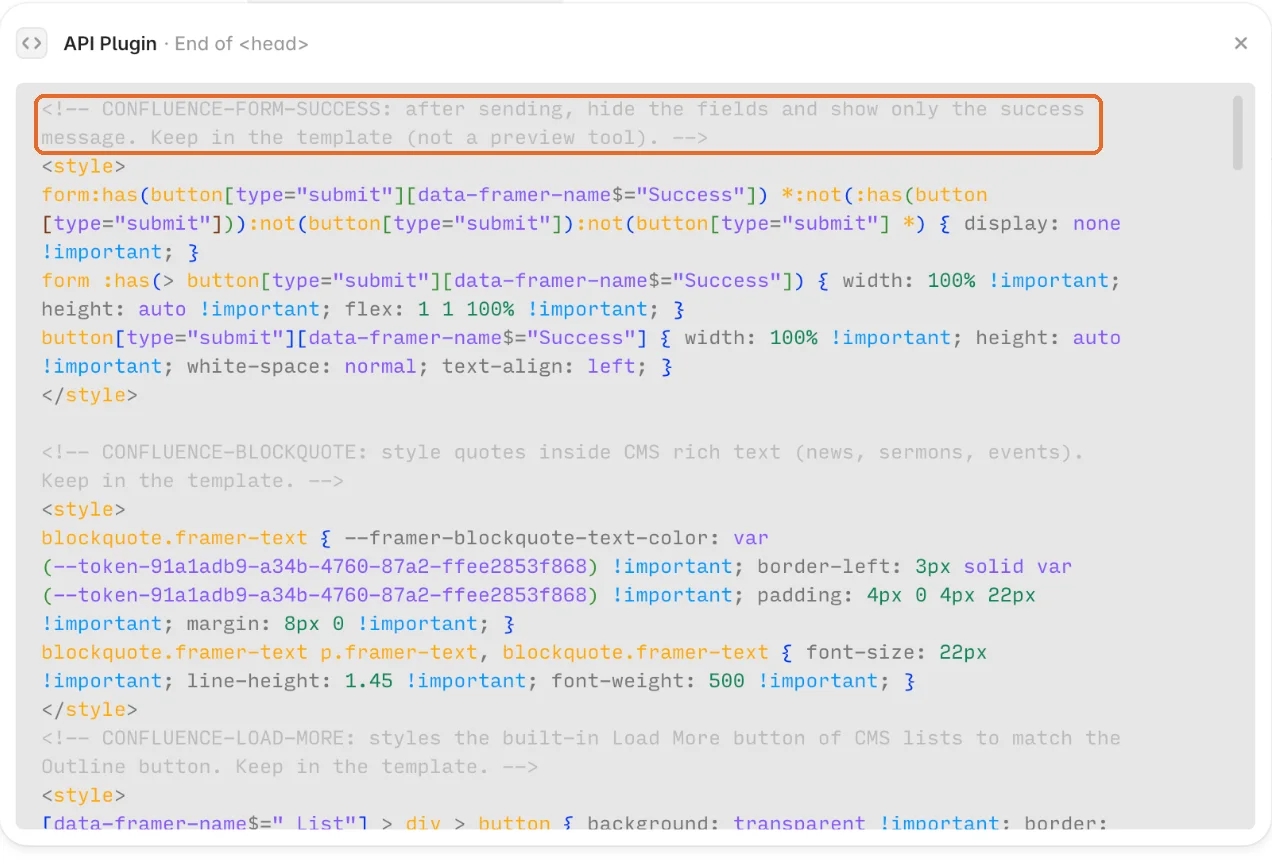
Hides form fields after sending, see step 5.
Style for quotes inside sermon notes, news and events.
Style of the Load more button on Sermons and News.
Structured data for search engines, see step 2.
Get help
Want it set up for you?
Sitewright, the studio behind this template, sets it up for your church at a fixed price: your logo, colors, locations, text and photos in place, your domain connected and the site published within five business days.